








Every year, thousands of business owners wake up to a sudden digital crisis. A web design agency stops answering emails. A former office manager leaves on bad terms. Or a domain expires without warning.
When the owner tries to fix the problem, they make a terrible discovery. They do not have the login to their domain registrar. They do not know who hosts their files. They do not even have an administrator account for their own website.
I have helped dozens of local contractors and clinic owners recover locked websites. Losing access to your online assets threatens your revenue, your email, and your customer reputation. In this guide, you will learn how to check who legally owns your website, trace missing credentials, and secure your digital property permanently.
The 3 Layers of Website Ownership Explained in Plain English
Most business owners think of their website as a single product. In reality, every website consists of three completely separate layers. Knowing the difference between these three pieces is critical when auditing your accounts.
1. The Domain Name (Your Digital Land Deed)
Your domain name is your online street address, such as yourcompany.com. You purchase rights to this address from an accredited registrar like Namecheap, Cloudflare, or GoDaddy.
Whoever controls the domain registrar account controls where all internet traffic flows. If an agency registered your domain under their personal account, they hold legal title to your online brand.
2. The Web Hosting Server (Your Digital Building)
Web hosting is the physical computer server where your images, layout code, and database live. You pay a monthly or annual hosting fee to keep these files connected to the internet.
As we covered in our review of WordPress vs Wix vs Squarespace, hosting can be open or proprietary. When you use self-hosted WordPress, you can move your website files to any host in the world at any time.
3. The Content Management System (Your Interior Furniture)
Your content management system, such as WordPress, is the software application where you publish articles, update prices, and edit text. This layer sits inside your hosting server.
Having a WordPress password lets you edit page text. However, a WordPress login alone does not give you ownership of your server or your domain name.
When you invest in professional web design services, you must demand full administrative access across all three distinct layers.
4. The Domain Name System (Your Business Mail Highway)
The Domain Name System acts as the central router for your company. It directs web visitors to your hosting server and routes corporate emails to Google Workspace or Microsoft 365.
If an unauthorized person alters your MX records, your entire company email system goes dark instantly. Protecting your DNS dashboard is just as vital as protecting your bank logins.
How to Run a 60-Second Ownership Audit
You do not need a computer science degree to check who controls your website. You can uncover your account status in sixty seconds using public registry tools.
Step 1: Check the Official ICANN WHOIS Registry
Every accredited domain registration is cataloged by the Internet Corporation for Assigned Names and Numbers. Visit the official ICANN Lookup tool and enter your website address.
Review the Registrar section. This tells you which company holds your domain, such as Namecheap, GoDaddy, or Google Domains. Next, look at the Registrant Contact details.
If you see your company name and email address, you hold official ownership. If you see privacy proxy data, that is normal for spam protection. However, if you see an agency name or an unfamiliar email, someone else controls your address.
Step 2: Inspect Your Domain Name Servers
On your ICANN lookup report, locate the Name Servers field. Name servers act as the traffic director for your domain.
If your name servers point to companies like Cloudflare, Bluehost, or WP Engine, that indicates where your hosting or DNS resides. Write down these server addresses for your records.
Step 3: Conduct a Credit Card Billing Search
If you do not know who hosts your website, search your company credit card statements. Look for recurring annual charges between ten and thirty dollars for domains, and monthly charges between fifteen and fifty dollars for hosting.
Finding the billing statement reveals the exact vendor name and often lists your customer account number right on the receipt.
Step 4: Inspect WordPress Users for Hidden Backdoors
Log in to your WordPress dashboard and navigate to the Users screen. Review the list of accounts with the Administrator role.
If you see accounts belonging to former employees or unfamiliar contractors, investigate immediately. Unchecked administrator accounts represent a severe security vulnerability for your business.
The 4 Logins Every Business Owner Must Store in a Secure Vault
To guarantee complete operational control, you must hold the keys to four specific systems. Store these credentials in an encrypted business password manager like Bitwarden or 1Password.
| Account Type | What It Controls | Why You Need Primary Access |
|---|---|---|
| Domain Registrar Login | Your .com address ownership and transfer locks | Prevents domain hijacking and accidental expiration |
| DNS Management Dashboard | Where your website traffic and business emails route | Allows instant repointing to a new server during emergencies |
| Web Hosting Control Panel | Server files, SFTP access, and MySQL database | Enables downloading full offline backups of your website |
| WordPress Administrator Account | Theme files, plugins, users, and page content | Allows managing staff permissions and editing all site pages |
Notice that your WordPress user role must be set to Administrator. Many shady agencies set client accounts to Editor.
An Editor role prevents you from installing plugins, adding users, or exporting data. Always verify that your profile displays the Administrator role.
Securing SFTP and Database Access
Beyond web logins, your hosting control panel provides direct file access via Secure File Transfer Protocol (SFTP) and database tools like phpMyAdmin.
These tools allow a developer to export your database and download raw media files. If an agency withholds your WordPress password, having SFTP and database credentials lets you reset passwords in minutes.
What to Do If an Agency Refuses to Hand Over Logins
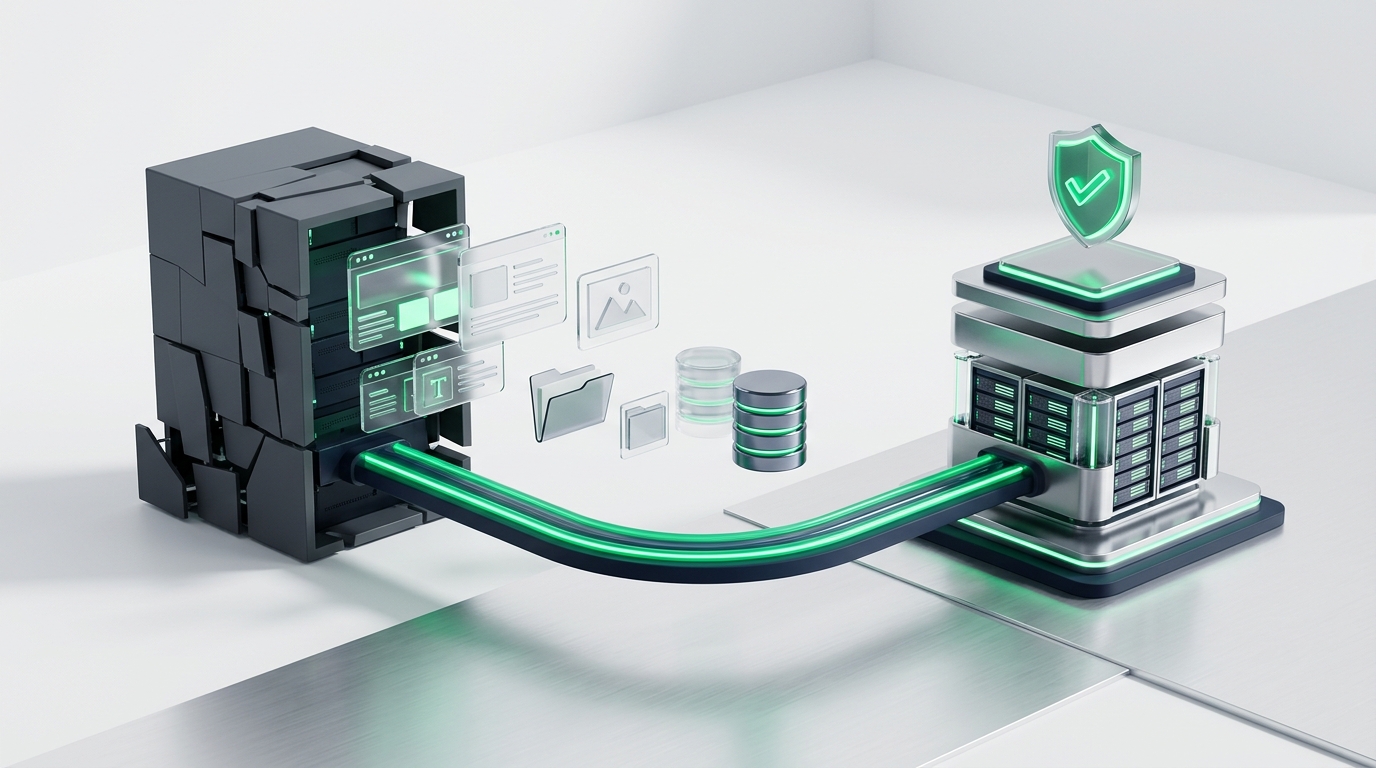
If you find yourself in a dispute with a former web developer who refuses to share account access, do not panic. Follow this recovery roadmap to regain control.
1. Understand Your Real Power
The domain name is the most valuable asset in the entire equation. If you control your domain registrar account, you hold ultimate power over the situation.
Even if an agency refuses to release your hosting server, they cannot steal your brand if you own the domain. You can simply point your domain name servers to a clean host and build fresh pages.
2. File a Formal Ownership Dispute With the Registrar
What happens if the agency registered your domain under their own account? Contact the customer support department of the accredited registrar listed in your ICANN lookup.
Registrars have formal dispute policies for rightful business owners. You can prove legal ownership by providing state business formation documents, utility bills matching the business address, and corporate tax filings.
3. Send a Formal Written Demand Notice
If an agency is dragging their feet, send a formal written notice on company letterhead. Request all master credentials within five business days.
State clearly that withholding administrative credentials for intellectual property paid in full violates commercial agreements. Most agencies cooperate immediately once a dispute is documented in writing.
4. Check for Secret Offsite Backups
Ask if any third-party backup service was ever configured. Many WordPress maintenance plugins store complete site archives in cloud storage like Google Drive or Amazon S3.
If you locate an unencrypted backup file, any experienced web developer can restore your entire site on a fresh server in under two hours.
How to Prevent Digital Hostage Situations Going Forward

Once you secure your digital assets, establish strict operational rules so your business never faces this risk again.
First, always purchase domains and hosting accounts using a generic corporate email address, such as admin@yourcompany.com. Never allow an agency or staff member to use their personal Gmail account.
Second, ensure auto-renewal is turned on for all domain registrations. Add a secondary backup credit card to your account so an expired card never causes your domain to drop.
Third, turn on two-factor authentication on your domain registrar and web hosting portals. Require an authenticator app code to log in, preventing unauthorized password resets.
Fourth, lock your domain transfer status at the registrar level. This feature prevents anyone from transferring your domain to another company without your explicit approval.
Finally, implement a strict offsite backup schedule. Download a complete archive of your WordPress database and media uploads at least once every quarter.
Store your master recovery keys in a physical office safe alongside your legal company documents. Treating your digital accounts like real estate property prevents painful business disruptions.
In our guide on local business website must haves, we emphasized that your website is your primary revenue engine. Protecting that engine requires maintaining total legal ownership of every account.