







If your website opens fast on your office computer but drags on your phone, you are losing money every day. A slow website on mobile frustrates local customers who want your phone number right now.
Most small business owners never test their site on a cellular connection. They assume that if it looks fine on a laptop, it works everywhere. When a page takes more than a few seconds to load on a mobile device, visitors do not wait around. They tap the back button and call the next business on Google.
I build and repair websites for local service businesses at Built Better Growth. In this guide, I will show you why your mobile site feels sluggish and how you can fix it today. You can also explore my web design services if you want my personal help to speed up your pages.

Why Your Website Feels Slow on Phones (and Fast on Laptops)
Phones are not just smaller computers. They have slower processors, smaller memory buffers, and they rely on mobile wireless towers that fluctuate in speed.
When you browse your site on an office laptop, your broadband Wi-Fi hides technical mistakes. Your computer downloads large files in a fraction of a second. A smartphone on a 4G or 5G connection struggles to handle that same heavy code. This causes a noticeable delay when a mobile customer taps your link.

Here are the primary technical reasons a website slow on phone drives away potential buyers:
- Oversized desktop images: Uploading four-megabyte camera photos forces a phone to download massive files for a three-inch display.
- Too many background scripts: Analytics tags, chat bubbles, and social icons overload the phone’s mobile processor.
- Page builder bloat: Visual drag-and-drop editors often generate excessive nested code wrappers that choke mobile browsers.
- Cheap shared hosting: If your server takes over a second just to respond, mobile visitors leave before anything appears.
- Missing browser caching: Without proper cache rules, returning visitors must re-download every asset on every page view.
Understanding these bottlenecks is the first step toward fixing them. None of these issues require rebuilding your entire site from scratch.
Default Fixes vs. How I Fix Mobile Speed
Many business owners try to solve speed problems by buying another plugin or paying for expensive marketing packages. These surface-level tactics rarely fix the root causes on mobile devices.
Here is an honest breakdown comparing the common DIY approach against the direct technical methods I use:
| Evaluation Aspect | The Default or Cheap Way | How I Do It | What You Can Measure |
|---|---|---|---|
| Image Optimization | Letting WordPress scale down raw 5MB JPEGs automatically in HTML. | I convert all assets to WebP formats and resize them to exact mobile dimensions. | Total page weight in megabytes via PageSpeed Insights. |
| Script Handling | Loading ten tracking pixels and live chats on initial page load. | I defer non-essential JavaScript until after the main content renders. | Interaction to Next Paint (INP) and Total Blocking Time. |
| Server Caching | Using basic free plugins with default unconfigured settings. | I configure server-level page caching and object caching at the edge. | Time to First Byte (TTFB) in webpagetest.org. |
| Font & CSS Delivery | Loading four Google Font families with heavy external style sheets. | I self-host modern fonts and inline critical above-the-fold CSS. | First Contentful Paint (FCP) under 1.5 seconds. |
| Mobile Layout Stability | Leaving image dimensions blank so content shifts as elements load. | I declare strict aspect ratios so layouts remain rock solid. | Cumulative Layout Shift (CLS) score below 0.1. |
Research from web.dev Core Web Vitals shows that keeping your main load time under 2.5 seconds prevents mobile visitor abandonment. You can verify this standard directly using Google’s public guidelines.
7 Fixes to Speed Up Your WordPress Mobile Site Today
You do not need to be a software engineer to make meaningful improvements. Follow these seven practical steps to cut mobile load times and protect your inbound leads.
1. Run a Clean Mobile Audit
Before you touch any settings, you need a baseline measurement. Open Google PageSpeed Insights in your browser and enter your home page web address.
Click on the Mobile tab rather than the desktop score. Pay close attention to your Largest Contentful Paint and Total Blocking Time. These two numbers tell you when visitors actually see text and when buttons become clickable.
How to check it worked: Write down your mobile score and load metrics before changing anything. You will re-test after every single fix.
Common mistake: Looking only at the desktop tab score. Desktop scores are almost always higher and will give you a false sense of security.
2. Compress and Convert Your Images to WebP
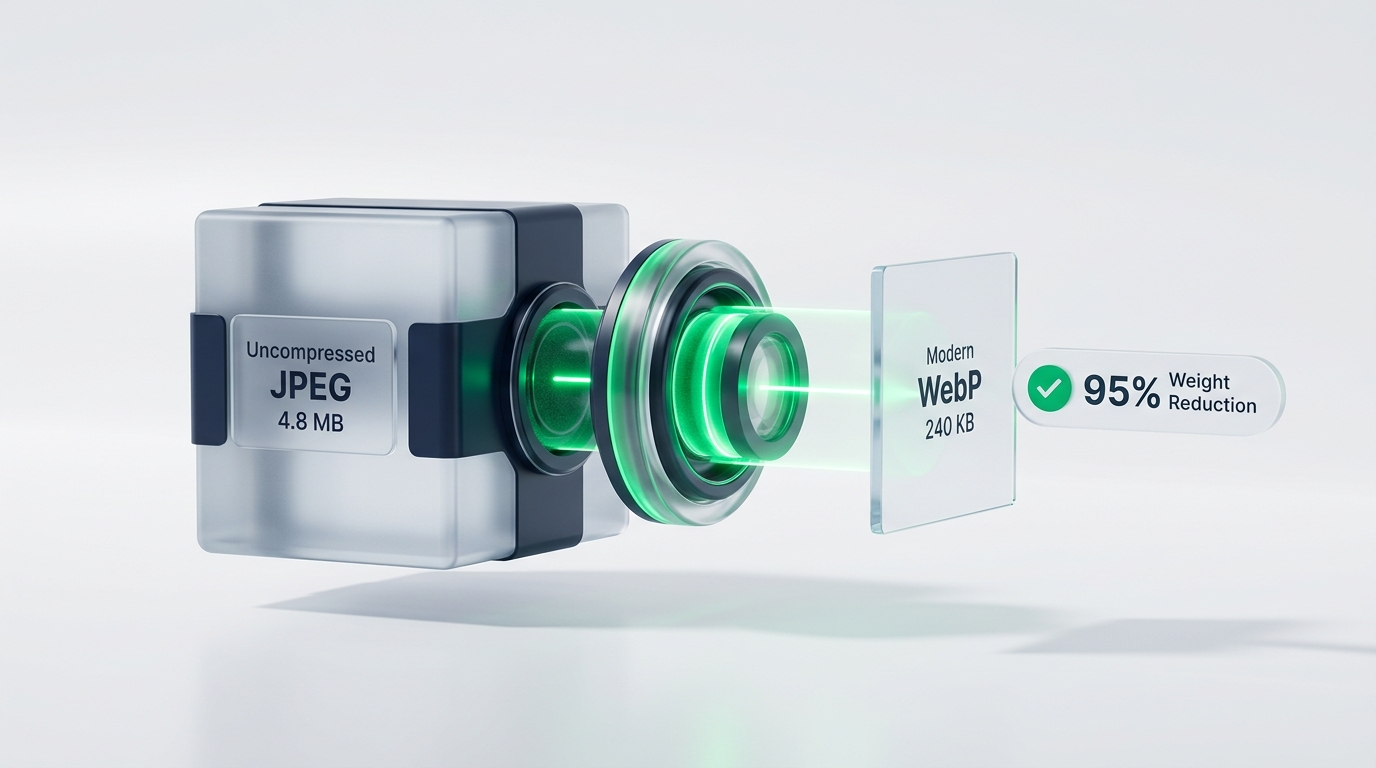
Heavy images are the single biggest cause of slow mobile loading. If you took photos on a smartphone and uploaded them directly to WordPress, each picture might be five megabytes.
Resize all full-width photos so they are no wider than 1200 pixels. Next, run them through an image optimizer to convert them into modern WebP format. WebP images retain crisp visual clarity while using roughly one-third of the file size of older JPEGs.
How to check it worked: Re-run PageSpeed Insights. The recommendation warning titled “Properly size images” or “Serve images in next-gen formats” should drop to zero.
Common mistake: Relying solely on theme settings to resize images visually. CSS may shrink the visual container, but the mobile phone still downloads the full five-megabyte file.
3. Turn on Proper Page and Browser Caching
Every time a visitor lands on your page, WordPress has to talk to your database, assemble PHP code, and build the page from scratch. This process wastes precious seconds on mobile networks.
A good caching setup stores a pre-built static HTML version of your page. When a mobile customer visits, the server sends that static file instantly. This drastically reduces the workload on your hosting server.

How to check it worked: Test your web address in a private browsing window on your phone. The second time you load a page, it should appear almost instantly.
Common mistake: Installing multiple caching plugins at once. Having two caching plugins active at the same time causes software conflicts and breaks layouts.
4. Defer Render-Blocking JavaScript
When a phone browser reads your website code, it stops every time it hits a script tag. It will not show your text or headline until it finishes downloading and running that script.
Review the plugins you have installed. Defer non-critical scripts, such as Google Analytics, chat widgets, and heatmaps, so they load after your headline appears. This allows your customer to read your offer while secondary tools load quietly in the background.
How to check it worked: Check the “Eliminate render-blocking resources” audit in PageSpeed Insights. The list of blocking scripts should shrink dramatically.
Common mistake: Deferring critical core files like jQuery or theme scripts without testing your mobile menu. Always test your navigation bar after deferring scripts.
5. Clean Up Inactive Plugins and Builder Add-ons
It is easy to accumulate dozens of WordPress plugins over time. You might have installed an old slider, a popup builder, or a calendar widget that you no longer use.
Every active plugin injects its own CSS styles and JavaScript files into your header. Go through your WordPress plugin list. Deactivate and permanently delete any plugin that is not essential to earning customer calls.
How to check it worked: Look at your total request count in your audit tool. Reducing your active plugin list by half can remove dozens of unnecessary network requests.
Common mistake: Deactivating plugins but leaving them installed on the server. Always test your site, make a backup, and delete the unused files completely.
6. Fix Layout Shifts and Declare Dimensions
Have you ever tried to tap a button on your phone, only to have the screen jump and make you miss? Google calls this Cumulative Layout Shift (CLS).
This happens when images and banners do not have explicit width and height dimensions written into the code. The browser does not know how much space to reserve, so it moves the text around as images load.
How to check it worked: Ensure your CLS score in PageSpeed Insights is below 0.1. The tool should display a green badge for visual stability.
Common mistake: Adding dynamic popups or top announcement banners that push the main page content downward two seconds after load.
7. Test on a Real Mobile Device Using Cellular Data
Synthetic lab tools are helpful, but nothing replaces testing on an actual smartphone. Take your personal phone, turn off Wi-Fi, and load your website on cellular data.
Navigate through your service pages. Tap your phone number to ensure the dialer opens instantly. Fill out your inquiry form and verify that the confirmation message appears without delay.
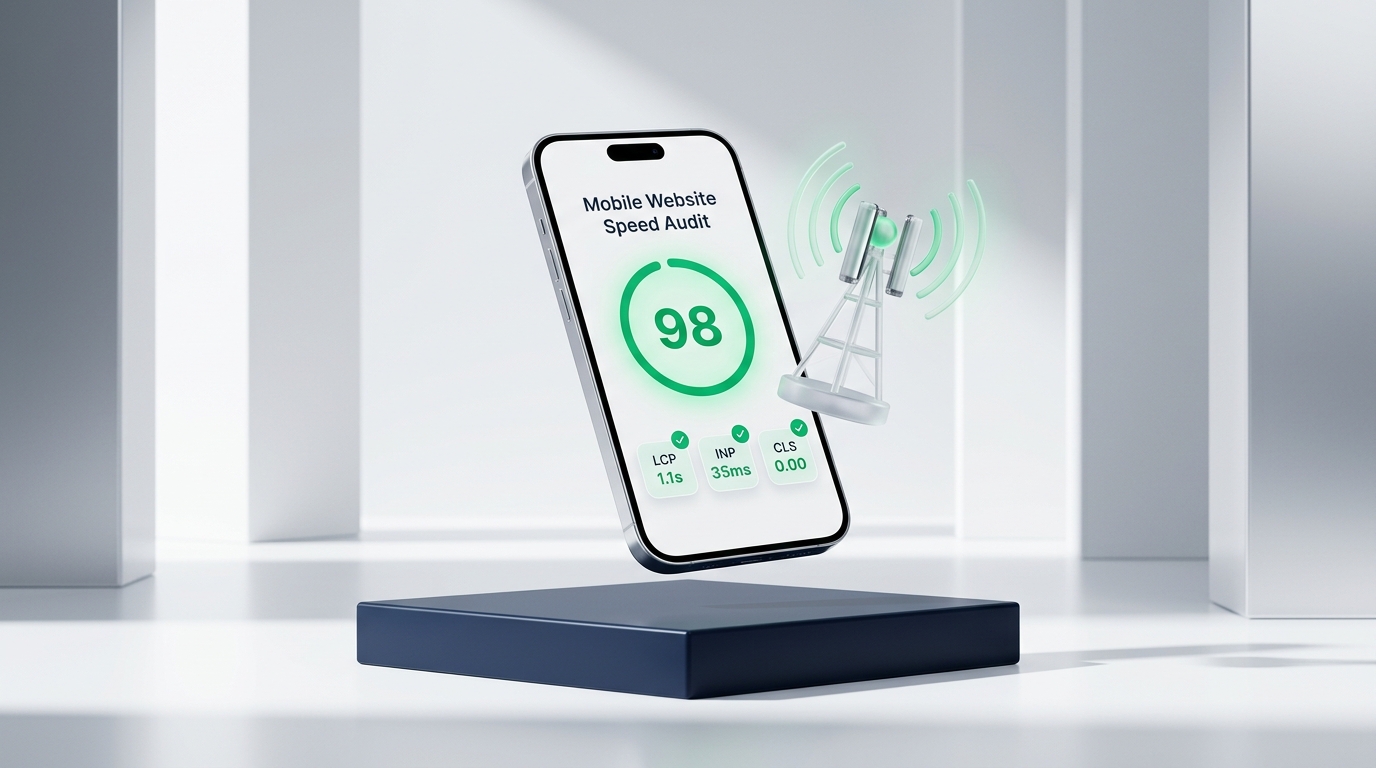
How to check it worked: Test your pages on cellular data. If they load within two seconds and your phone number dials instantly, you are ready.
Common mistake: Testing only while connected to your fast home or office Wi-Fi network. Your customers are often outside on variable 4G signals.
What Results to Expect After These Fixes
Speed optimization is not about chasing an arbitrary perfect score. It is about removing friction so that real people who need your services can call you without frustration.
When your mobile site loads quickly and cleanly, you should expect noticeable improvements in your core business metrics:
- More phone calls and inquiries: Customers who find what they need in two seconds are far more likely to contact you immediately.
- Lower bounce rates: You will stop losing visitors who hit the back button out of impatience.
- Higher Google Ads conversion rates: If you pay for Google Ads, faster mobile landing pages directly lower your cost per lead.
- Better local search visibility: Google uses mobile-first indexing for all websites, meaning mobile performance supports your organic rankings.
You can track these outcomes using free tools like Google Search Console and Google Analytics 4. Look at your mobile engagement rate over thirty days to see real progress.
Frequently Asked Questions About Mobile Website Speed
What is a good mobile load time?
A good mobile load time is under 2.5 seconds on a typical 4G connection. Google considers anything under 2.5 seconds to pass the Largest Contentful Paint threshold. Sites that load faster than this hold visitor attention and earn higher conversion rates.
Does speed affect Google rankings?
Yes, speed is an official Google ranking factor. Google uses mobile-first indexing, which evaluates the mobile version of your site for search rankings. Slow pages provide poor user experience, leading to higher bounce rates that can hurt your search visibility over time.
How do I test my speed for free?
You can test your website for free using Google PageSpeed Insights. Simply enter your web address and review the Mobile tab. It shows your Core Web Vitals scores and gives you a clear list of technical opportunities to fix.
Why is my website fast on desktop but slow on mobile?
Desktop computers have fast wired connections and powerful processors that chew through heavy code instantly. Mobile phones rely on variable cellular signals and have smaller processors. Heavy images and uncompressed scripts quickly overload mobile devices, causing noticeable lag.